GetResponse must be setup within the Plugins page.
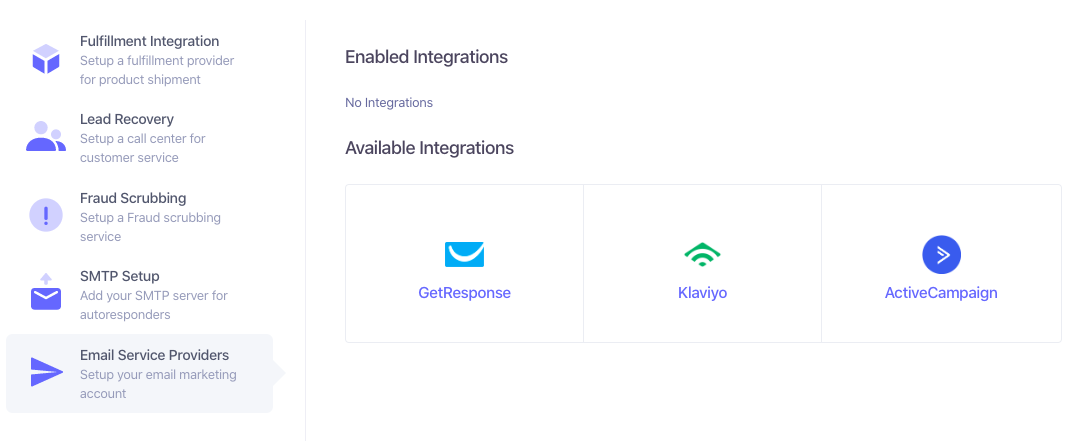
1. Navigate to CRM menu Administration > Plugins
2.. Select Email Service Providers under Available Services
3. Select GetResponse under Available Providers
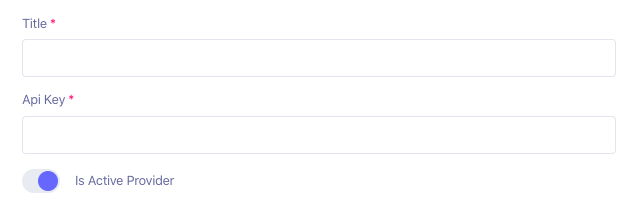
4. Enter a Title and your GetResponse API key. An invalid API key will not allow you to proceed with the SiteRoute options in the next step.
5. Then click on "Site Route" to select which sites and customer types to include in your list
If you have entered an incorrect API key, you will see this error when you click on Site Route

If you entered the correct API key, then Site Route will auto load your list options under the "GetResponse List" dropdown for you to select.

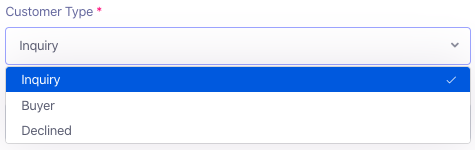
Then select the customer type:
Then select the Site(s) to fetch the customer type from:

6. Check the Active toggle to make it active
7. Click Save.
8. GetResponse configuration is now complete.

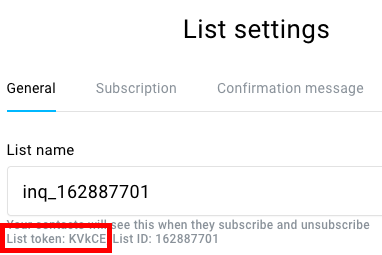
To find your List Token within GetResponse:
1. Click on Lists

2. Click on the three vertical dots icon on the List's row to find and click on Settings.
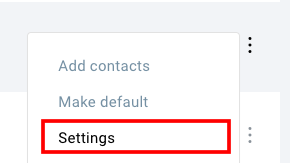
3. The List Token is located under the List name field.